Remove background
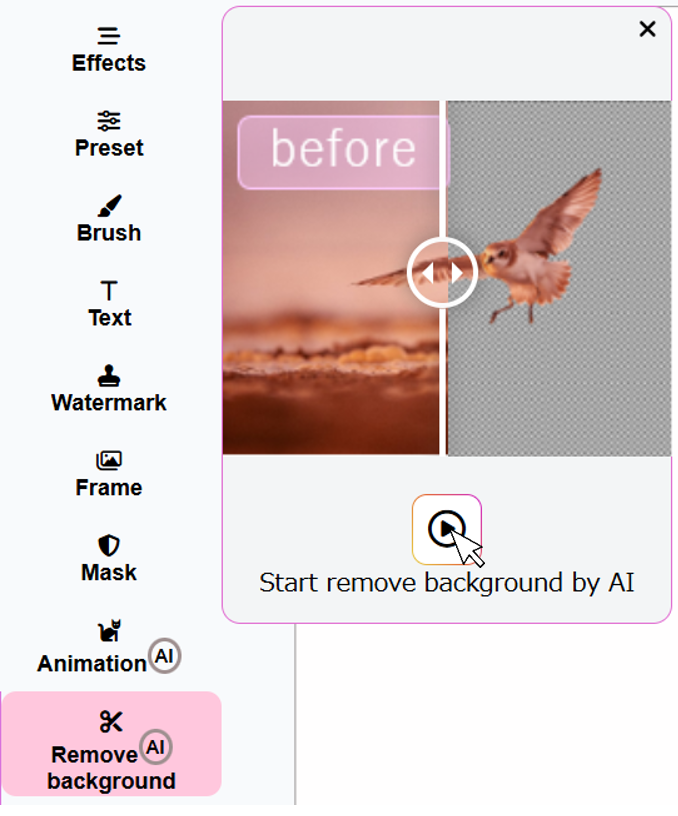
Recognize the mask by AI tool
When you start removing the background with AI, the AI will typically recognize the object and automatically create a mask that highlights the area you want to keep.
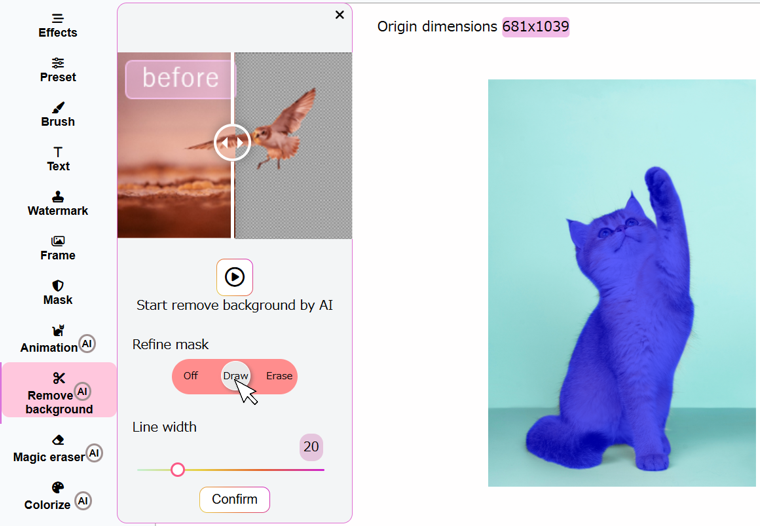
Refining the mask by brush
After recognizing the mask, you may need to refine it to ensure it accurately captures the object without including unwanted parts by drawing or erasing.
Confirming the mask
Once you're satisfied with the mask and the object is accurately selected, confirm the mask by clicking 'Confirm' button. The background will be removed, leaving only the object with transparent space around it.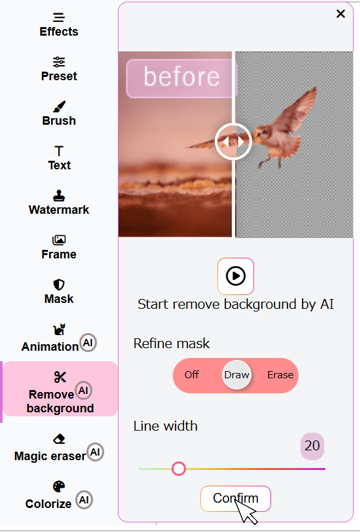
Add background color & shadow
Select a solid color to appear behind your transparent image. This fills in the empty areas and helps your image stand out. Additionally, you can enable a shadow and customize settings such as blur, offset, and color to match your design.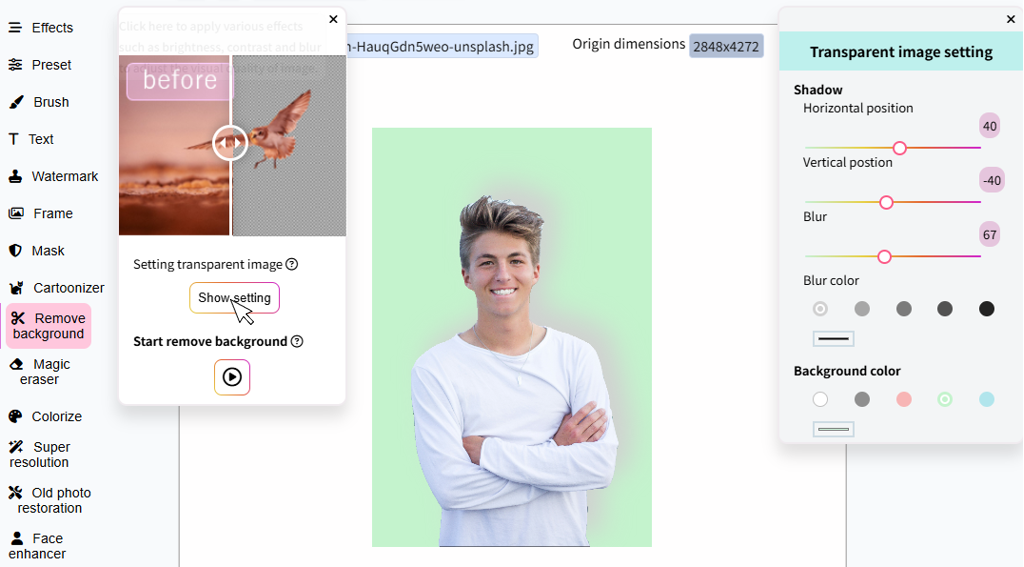
Magic eraser
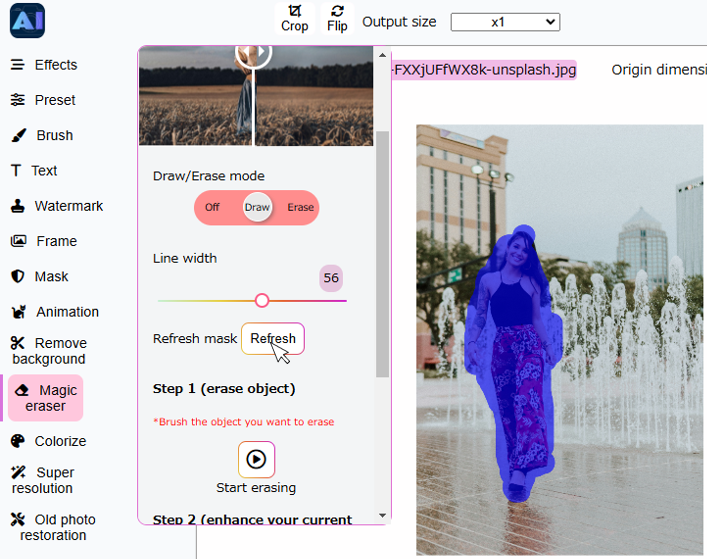
Step 1: Erase object
Initially, brush over the object, and apply Step 1 to remove it from the image.
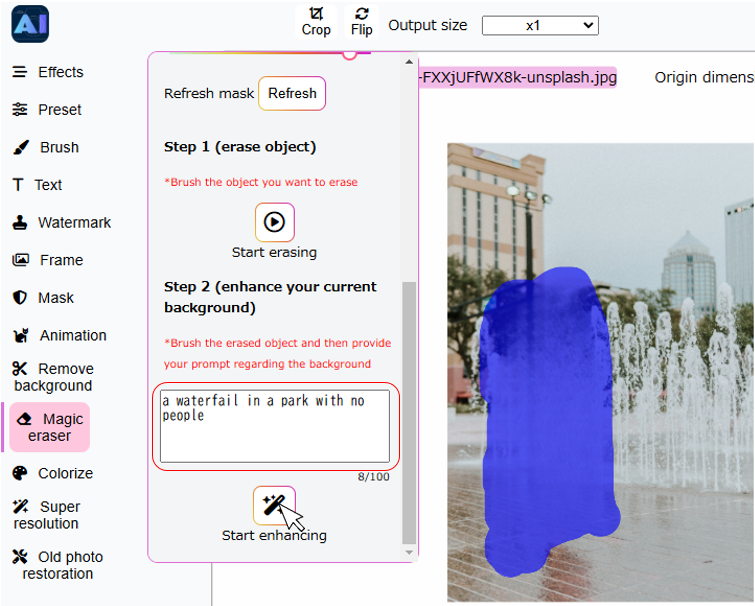
Step 2: Enhance the background
Next, brush over the erased area and apply Step 2 to enhance your current background by entering your prompt. Below are some samples of prompts.
- Green grass in the landscape, green trees, high resolution
- A serene mountain landscape at sunrise, with a clear blue sky but without any people or buildings in the scene.
Cartoonization
Crop the photo
Begin by cropping the image to focus on the main subject or a specific area of interest. Ensure the cropped selection highlights the key elements you wish to animate.

Animate the portrait or landscape
Once the image is cropped, there are AI animation tools you can use to animate the portrait. Here are a few options:
- Landscape – This tool animates landscapes, bringing them to life with a realistic effect.
- Portrait – This tool allows you to animate faces in a fun way using pre-built animations.
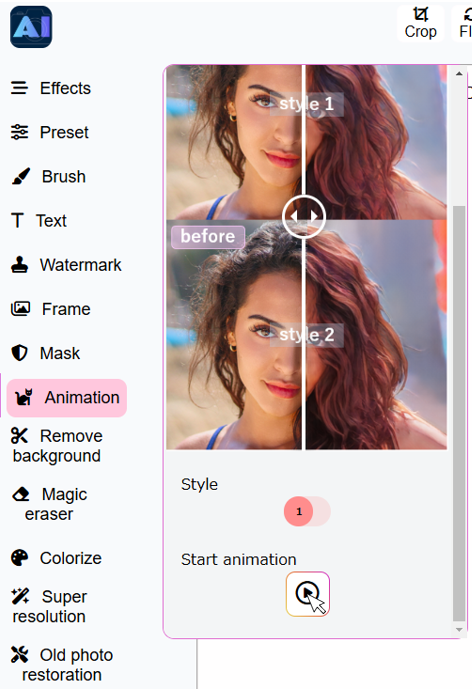
Image Enhancer
Image super resolution
Click the Start super resolution button to instantly upscale and sharpen your image using advanced AI. No settings or adjustments needed—just one click for a clearer, high-resolution result.

Old Photo Restoration
Bring your faded or damaged memories back to life! Click the Restore Old Photo button, and our AI will automatically:
- Remove scratches, dust, and stains
- Improve clarity and contrast
- Recover lost details in faces and backgrounds
Perfect for reviving scanned prints or vintage photos — no manual editing needed!

Face Enhancer
Click the Start face enhance button to automatically sharpen and beautify facial details in your photo. Our AI improves skin texture, lighting, and restores clarity — no extra settings needed!

Image colorization
Click the Start colorization button to bring black-and-white photos to life with natural, vibrant colors. Our AI intelligently adds color based on context and content — all with one click! Choose between Artistic for a creative touch or Stable for more natural, realistic tones.

Hairstyle changer
Crop the photo
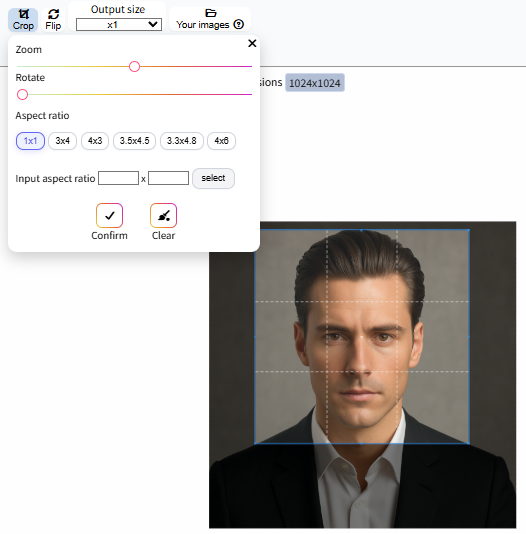
Start by cropping your picture to a 1:1 square. Make sure your face is right in the center — that way every hairstyle fits perfectly and you can see yourself shine in style!
Change your hair style and color
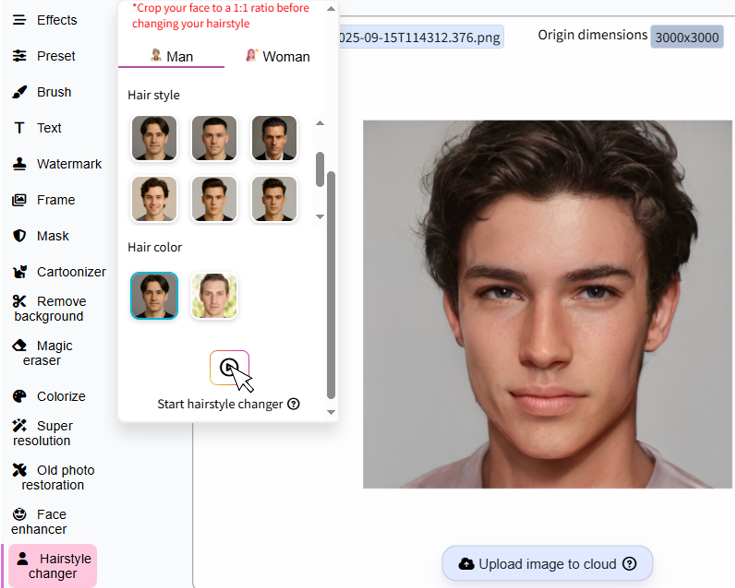
After cropping your image, you can use our AI tools to modify your look:
- Hairstyle – Select from a variety of styles to see which fits you best.
- Hair Color – Experiment with different colors to find perfect shade for you.
Age progression
Crop the photo
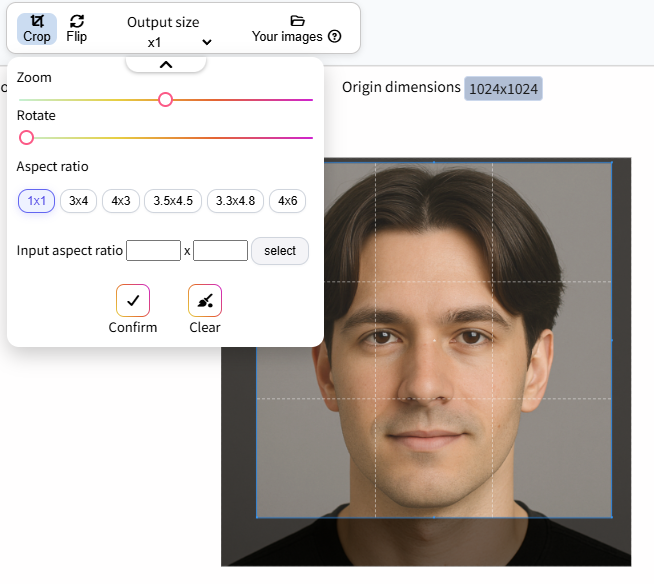
Begin by cropping your photo to a 1:1 square and centering your face. This ensures the age progression is precise, so you can clearly see how you’ll look as time adds its magic!
See yourself at different ages
Once your image is cropped, our AI tools let you experience lifelike age progression in just a few clicks:
- Hairstyle – Select an age to see how your appearance changes.
Store images in Cloud
Log in
Access your account to upload, edit, and organize your images seamlessly. Logging in also unlocks powerful cloud features like saving your edits online, accessing your image, and securely storing images for future use.

Upload images
Easily upload your images from your device to start editing right away. Our system supports all major formats and ensures quick, secure uploads to the cloud for instant access and backup.

You can upload the image currently being edited directly to the cloud for storage.

Delete images
Remove unwanted images from your cloud storage with a single click to keep your workspace organized.
